Add your support chat to any website
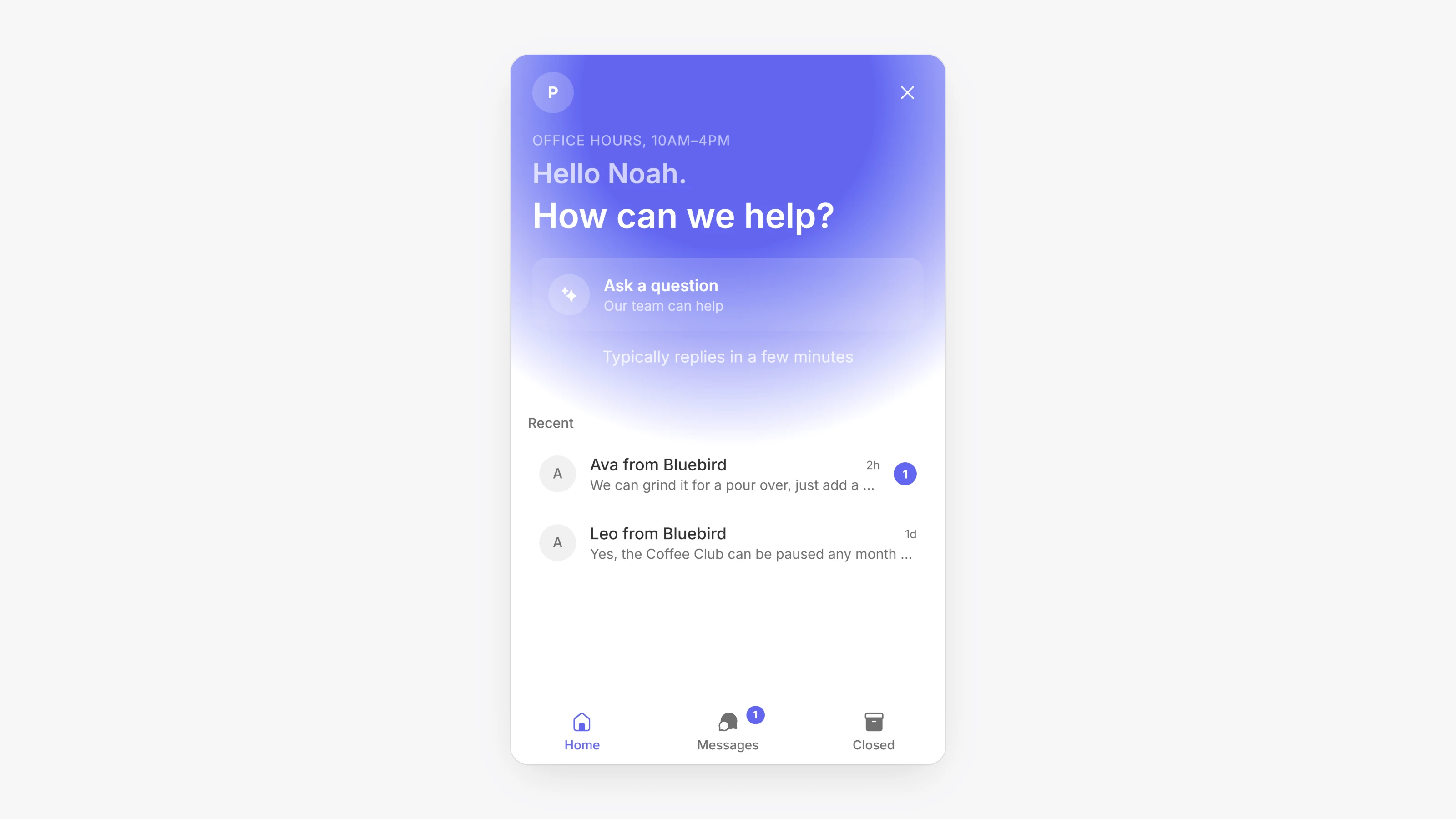
Your support chat used to live only on Paysio pages. You can now put it on any website. Open Settings, then Support Chats. On the General tab, find Install on your website, copy the snippet and paste it into your site. The widget uses the colors, messages and other settings from that page.
Developers can control the widget from their own code. Hide the floating bubble and open the chat from your own button, or link a visitor to a Paysio customer so their conversation follows them. The Chat Widget section on the Developers page covers every option.
The widget can also show today's office hours and a line such as "Typically replies in" followed by the reply time you set, so visitors know when to expect an answer.
- Set
window.PaysioChat = { workspaceId }and load thechat.jsscript from the install snippet. - Options:
hideLauncherandcustomerId, set onwindow.PaysioChator asdata-*attributes. - Methods:
PaysioChat.open(),close(),toggle(),isOpen()andon()for theready,openandcloseevents.
- Chat with the Paysio team from your dashboard. Click Support in the sidebar.