Changelog

New features, improvements and fixes in Paysio.

  1. The AI in the Agent Dashboard can now do what you can do
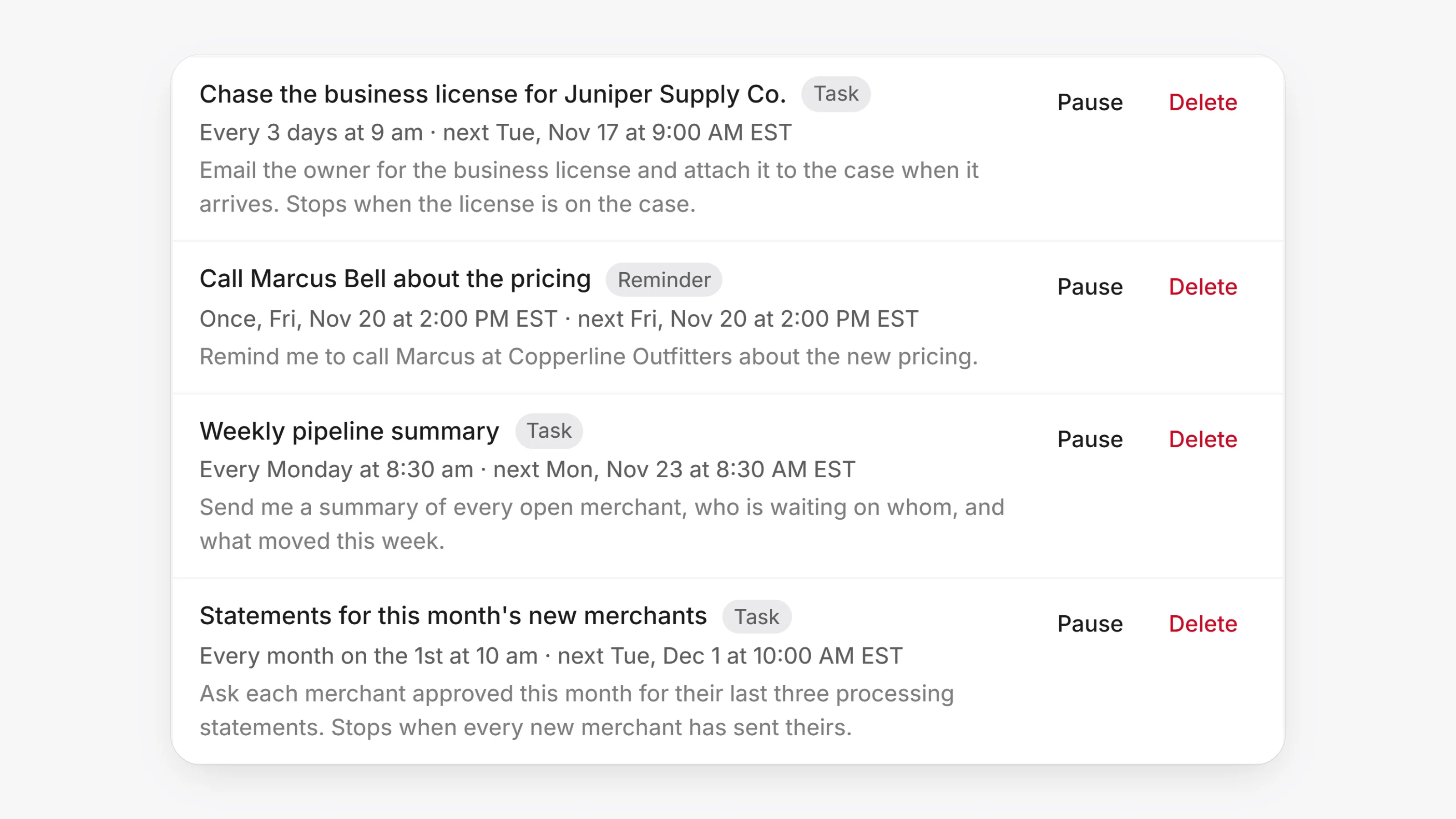
    The Scheduled settings page, listing reminders and recurring tasks with when each runs next and Pause and Delete buttons.

    The AI in the Agent Dashboard now reaches everything you can reach in the console: merchants, applications, documents, mail, pricing templates, contacts, apply links, settings and more. Open Agents and ask in plain words, like "extend the apply link for Bluebird Goods" or "which merchants are still waiting on a signature?". It finds the right merchant, reads what it needs and does the job.

    It works with your own permissions. Before it sends something, moves money or pricing, deletes something or changes access, it shows a card with every value, and nothing happens until you confirm. A plain change you asked for is saved right away, and a change to more than 10 things at once comes as a card first. Fees and prices only ever use numbers a person gave it.

    It also works with files. Attach a statement or a spreadsheet with the paperclip and ask about it, or ask it for a spreadsheet, a PDF, a Word document, a deck or a chart. The file comes back as a card in the chat: a PDF or a picture opens in a new tab, and anything else downloads. Card, bank and tax numbers are cut to their last four digits first.

    It can keep time for you too. Ask "remind me Friday to call Joe" or "chase the license every 3 days until it arrives". Open Settings, then Scheduled to see each reminder and task, when it runs next, and to Pause, Resume or Delete it. Anything a run would send still waits for your click.

    • Cmd+K (Ctrl+K on Windows): type what you want to do and pick it under Do it here. Each row says what it does, such as Reads only, Saves or Sends to someone. Reads show their answer at once, and anything that sends, moves money, deletes or changes access shows every value first and runs only when you click.
    • Web lookups: ask it to look something up, such as a business's website or a processor's published rules, and it searches the web, reads the pages and tells you where each fact came from.
    • Statements: attach a merchant's processing statement and ask for the effective rate, the fees and the savings. Savings are worked out against pricing you typed or one of your Pricing templates, never a guess.
    • Teammates: mention a merchant's teammate in a comment on the merchant's Activity and it does what you asked. It can retry a step that failed using what the merchant's file already holds, and it closes tasks once the merchant's file shows they are done.
    • Cards that wait for you have a grey background instead of a yellow outline.
    • A question with several right answers lets you tick more than one before you continue.
    • Up to 20 files can go in one message. Extra files are left out with a note, so nothing is lost silently.
  2. A new Home for the Agent Dashboard

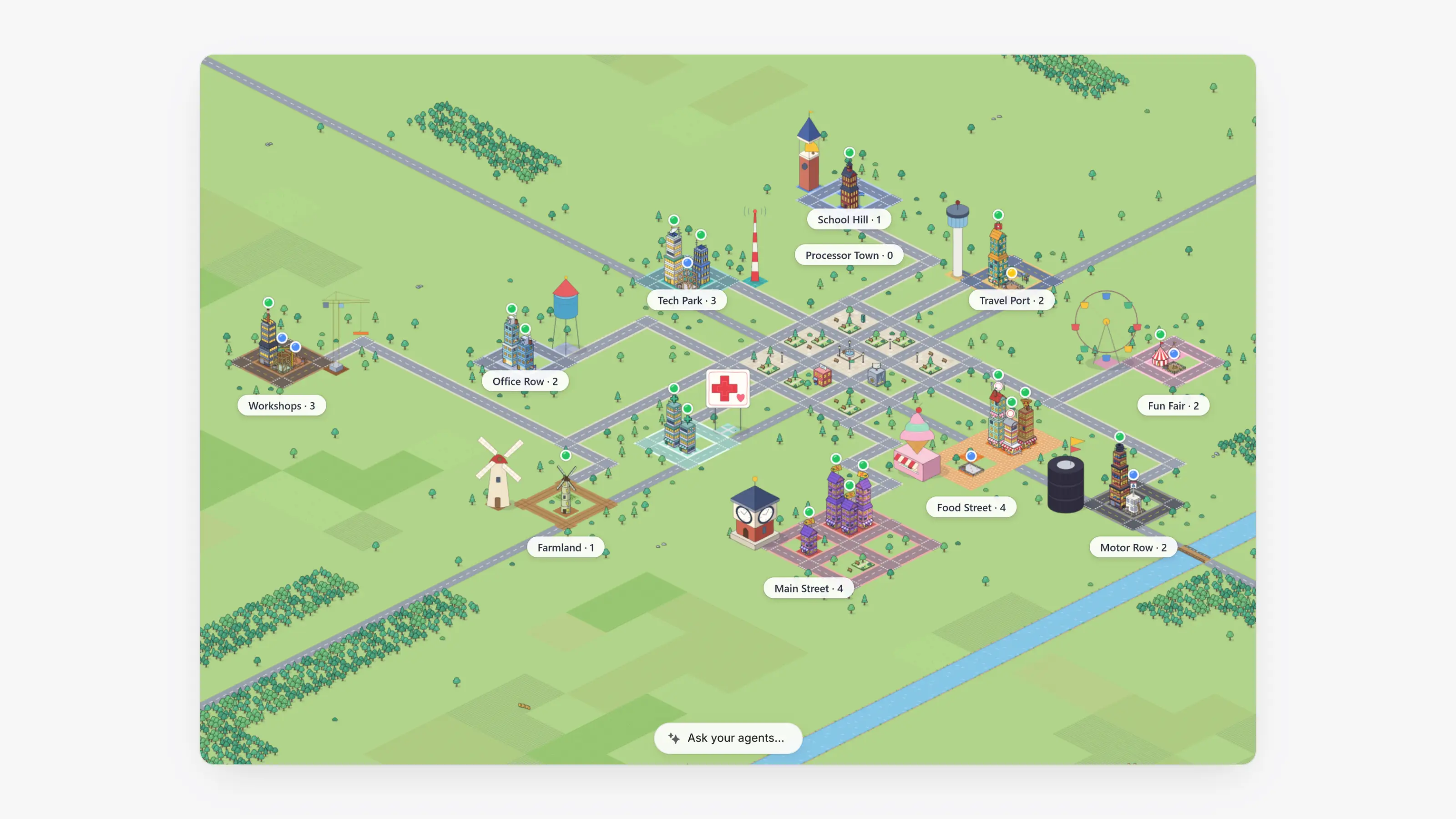
    The Home map in the Agent Dashboard: districts such as Food Street, Main Street and Tech Park, with a building for each merchant and the Ask your agents bar.

    The Agent Dashboard now opens on Home, a map of your book. Each merchant is one building in a district for its kind of business, such as Food Street, Main Street, Tech Park or Workshops. A building grows taller with the merchant's volume, its lights are on while it takes payments, and a red roof light means trouble, like a drop in approvals or chargebacks that are a real share of its payments.

    Merchants still onboarding are buildings under construction, from a fence and a foundation to a frame, a crane and painters as they move through the application, signing, review and the bank. A ribbon means it went live today, and a waving teammate means it needs you. Click How to read the city (the question mark) for the full legend.

    The bar at the top shows the period's volume, payouts and earnings and how many merchants are live, onboarding or need you. Click a figure to light up those buildings, and pick Today, 7 days, 30 days or This month. Click a building to see its numbers, then Open to go to the merchant. Switch to Overview for the same book as blocks and charts.

    The list you used to see on Home is now To do, right under it in the sidebar. Its count is the number of merchants and emails that need you, and old links to the inbox still open it.

    • Type a merchant's name in Ask your agents at the bottom of Home to find it on the map, or press Enter to ask the AI.
    • Click a figure in the top bar and its buildings get a bright pink outline, while the rest of the map fades.
    • How to read the city opens in the bar at the top, the same way a merchant's details do.
    • A red roof light now needs a clear pattern, such as two or more chargebacks, not a single one.
    • In Mail, the button beside the menu on a reply makes it bigger, to read and write a long email. Press Esc or click it again to put it back under the thread.
    • Earnings now lives inside Analytics, built from the same blocks as Home. Old Earnings links open it.
    • On a merchant's Fees tab, Apply charges new Paysio fees right away, with no signature. Send to sign still waits for the merchant, and a change to card rates always needs their signature.
    • Sent an application link by mistake? Cancel link on the application step stops it, and nothing is emailed. Reactivate turns it back on for 30 days at the same address, and Send again emails it.
  3. Import from mail, rebuilt

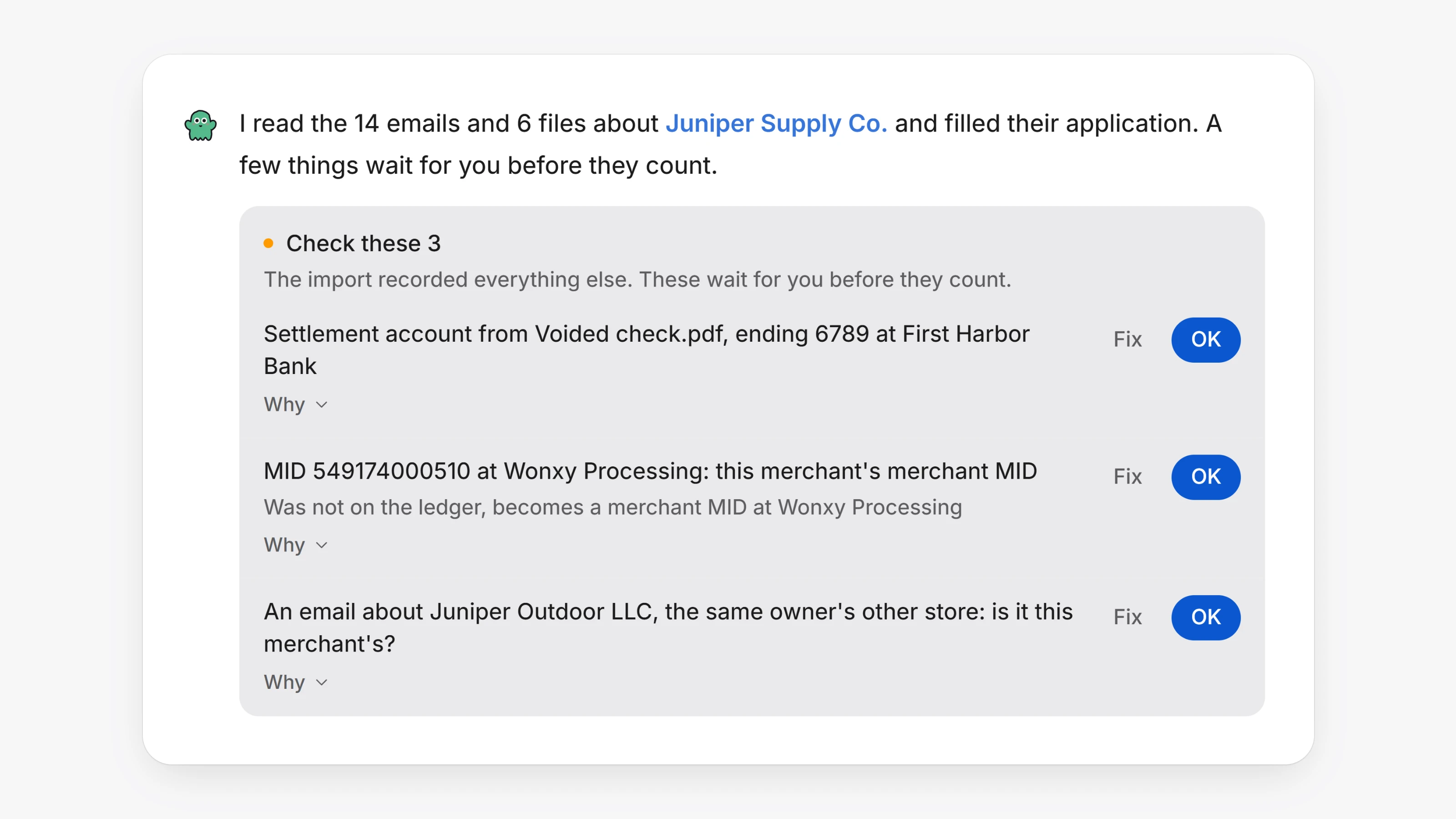
    A Check these card in the Agent Dashboard chat, with three rows to confirm: a settlement account from a voided check, a merchant ID and an email about a sister business, each with Fix and OK.

    When you import merchants from your mailbox, Paysio now reads each merchant's emails and files together, in one pass, and fills in their application from them. Every value it fills says where it came from, so you can always see why a field reads the way it does.

    A few facts need a person before they count: the bank account money settles to, a merchant ID, where the merchant stands with a processor, and anything the AI is unsure of. These wait on one Check these card in the chat. Click OK to keep a row, or Fix to pick the right answer, and click Why to see the email or the page of the file it came from. Until you do, the merchant shows how many are left to check.

    The merchant's page shows the result under Details, in Import from mail: what was Found in the mail and what is Still missing. When an import finishes, its card in the chat links straight to it with Open the import report.

    • Bank numbers are filled from the merchant's voided check when their application has none and nobody typed them, and only when the routing number checks out.
    • An email about the merchant that also mentions a sister business stays with the merchant.
    • A deadline like "by November 25" gets the right year.
    • An offer to approve on terms the merchant has not accepted is no longer read as an approval.
    • A merchant's reply to a processor's question is filed with that processor.
    • Funding holds and their releases are recognised, so a released hold no longer shows as open.
    • A merchant's own price sheet is never saved as your buy rates, and fees found in files are listed for you, never applied.
    • Files you drop into the chat are read the same way, and their Check these card comes to that chat.
    • If an import reaches its daily limit for a merchant, the merchant shows it as something that needs you, and nothing is retried in the background.
  4. Send applications to one more processor by API

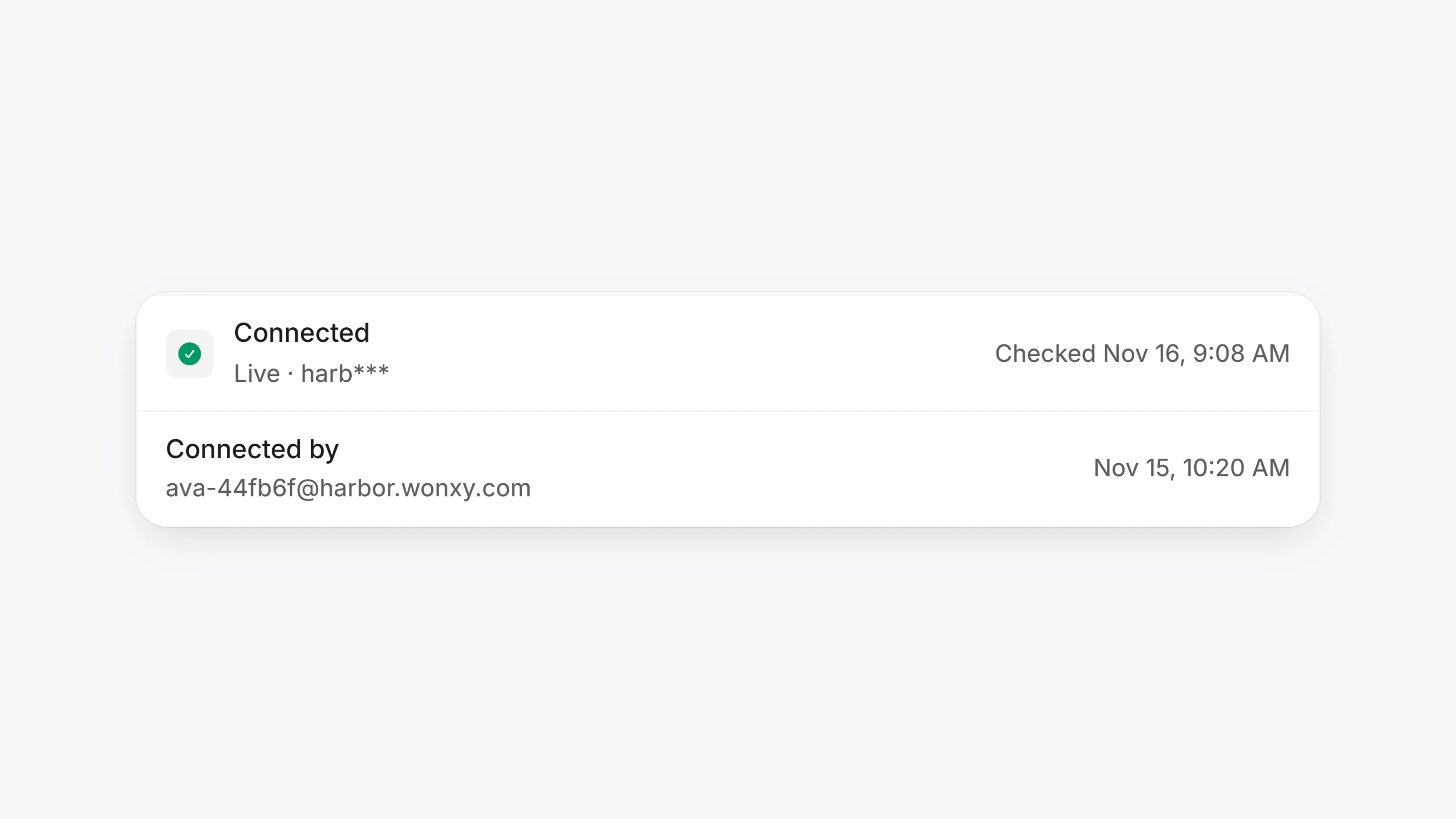
    A processor connection card in Processor connections settings, showing Connected, Live, when it was last checked, and who connected it.

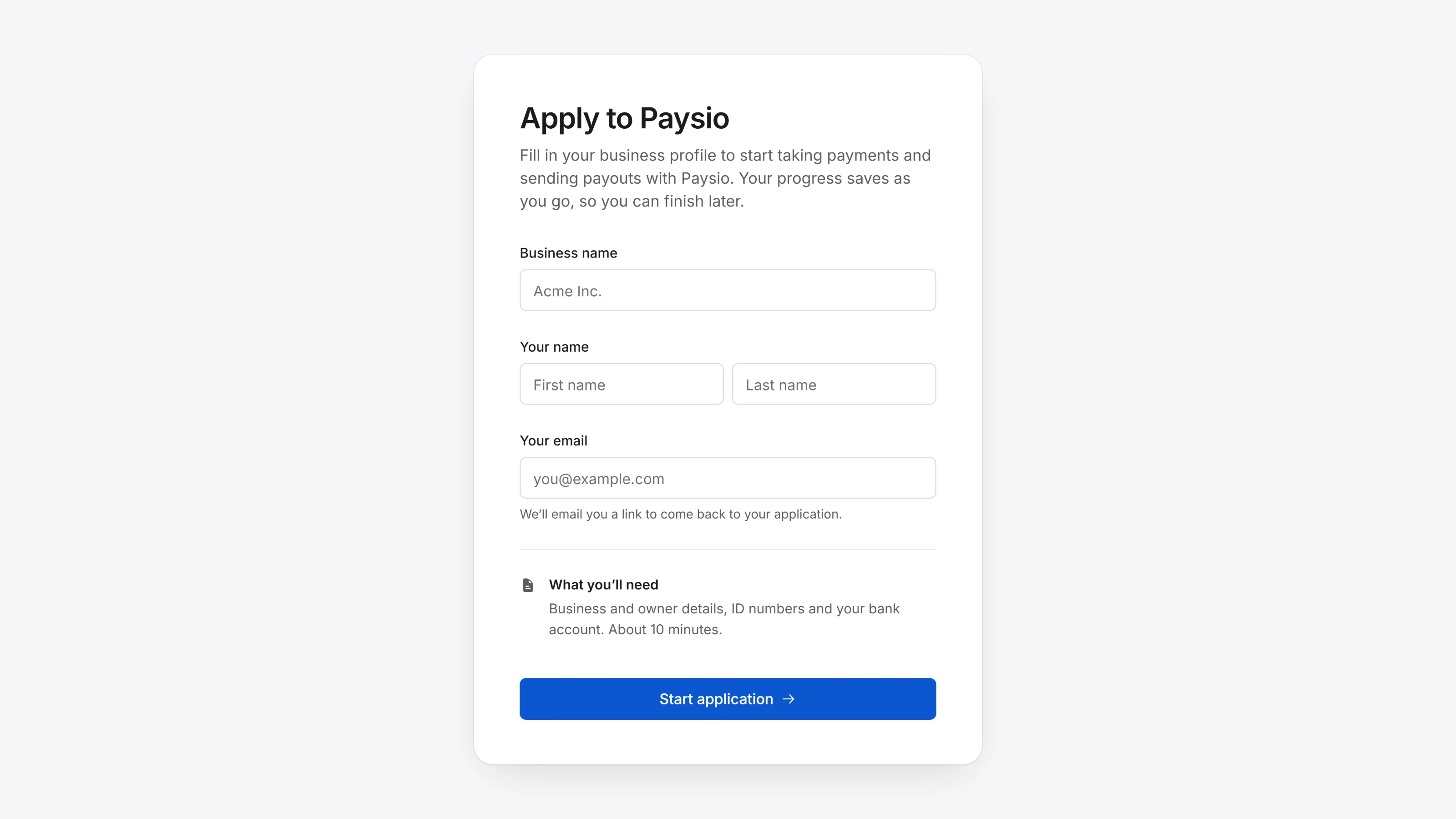
    There is one more processor you can now send applications to by API instead of by email. One call carries the case's details, the pricing you set, the signed application, its signing certificate and the merchant's documents.

    To set it up, you need the API username and password the processor gave you, and you must be an owner of your org.

    1. Open Settings, then Processor connections.

    2. Enter the username and password under that processor, and connect. Paysio signs in first and never saves details the processor refuses.

    3. Under Where deals go, pick the Gateway program. Until you pick one, deals still go by email. The Retail office, High-risk office and branch and rep codes are optional.

    4. Leave its switch under Sending on.

    Then send as you do today: on the merchant's processor step, tick the processor under Send to and click Send. The step reads "by API" once it is in. If the processor's API can't take the deal, the same package is emailed instead. Approvals and declines come back on their own, and an approval with a merchant ID is recorded on the merchant.

    • Paysio checks the processor for updates about every 30 minutes.
    • When the processor asks for more, sending again adds the new documents to the same deal.
    • Merchants applying to this processor also sign a W-9 and three short certifications on their sign page. These are added to the printed application.
    • Test merchants are never sent to the processor's live system.
  5. Your AI teammate makes files and asks better questions

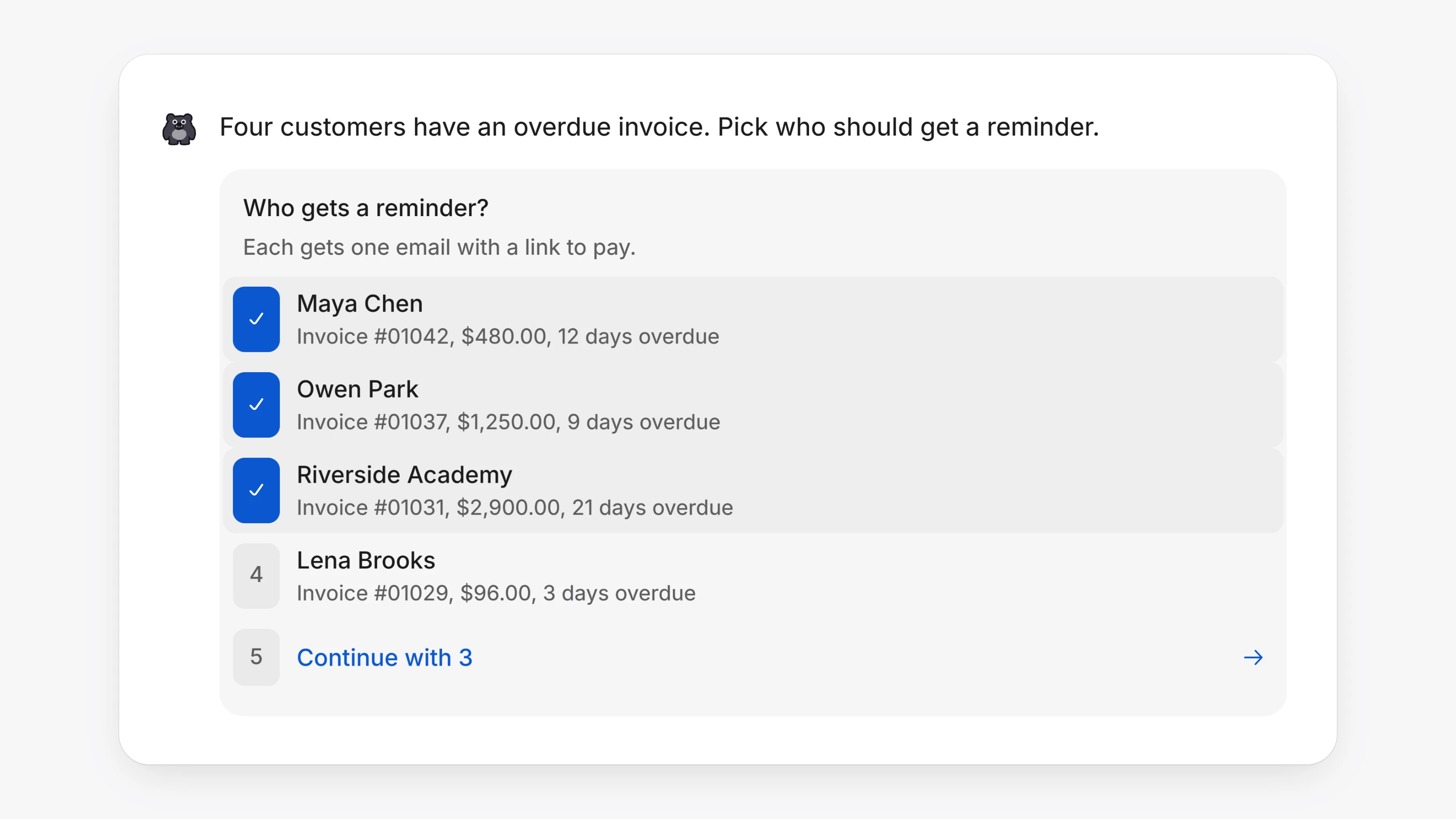
    The teammate in a merchant dashboard asking who gets a reminder, with three customers with overdue invoices ticked and a Continue with 3 button.

    Ask the teammate on Agents, or in the side chat, for a file: a spreadsheet of this month's payments, a report on your top customers, a chart of sales by week, or a document. It makes it from your own data and the files you attach, and only from the pages your role can see. Card, bank and tax numbers are cut to their last four digits first.

    The file comes back as a card in the chat that says what it is, such as Spreadsheet, PDF or Presentation. Click Open to see a PDF or a picture in a new tab, or Download for anything else.

    When a request has more than one right answer, like which customers to remind or which products to change, the teammate asks with a list you can tick. Click each row, or press its number, then click the last row, which reads like "Continue with 3". A question with one answer is still a single click.

    • Closing the side chat with Close keeps your conversation. Only a new chat starts another.
    • A message you just sent no longer flickers away while the chat refreshes.
    • Hover a long attachment name to see all of it.
    • Up to 20 files can go in one message. Extra files are left out with a note.
  6. Block a name on card, and hear about every declined checkout

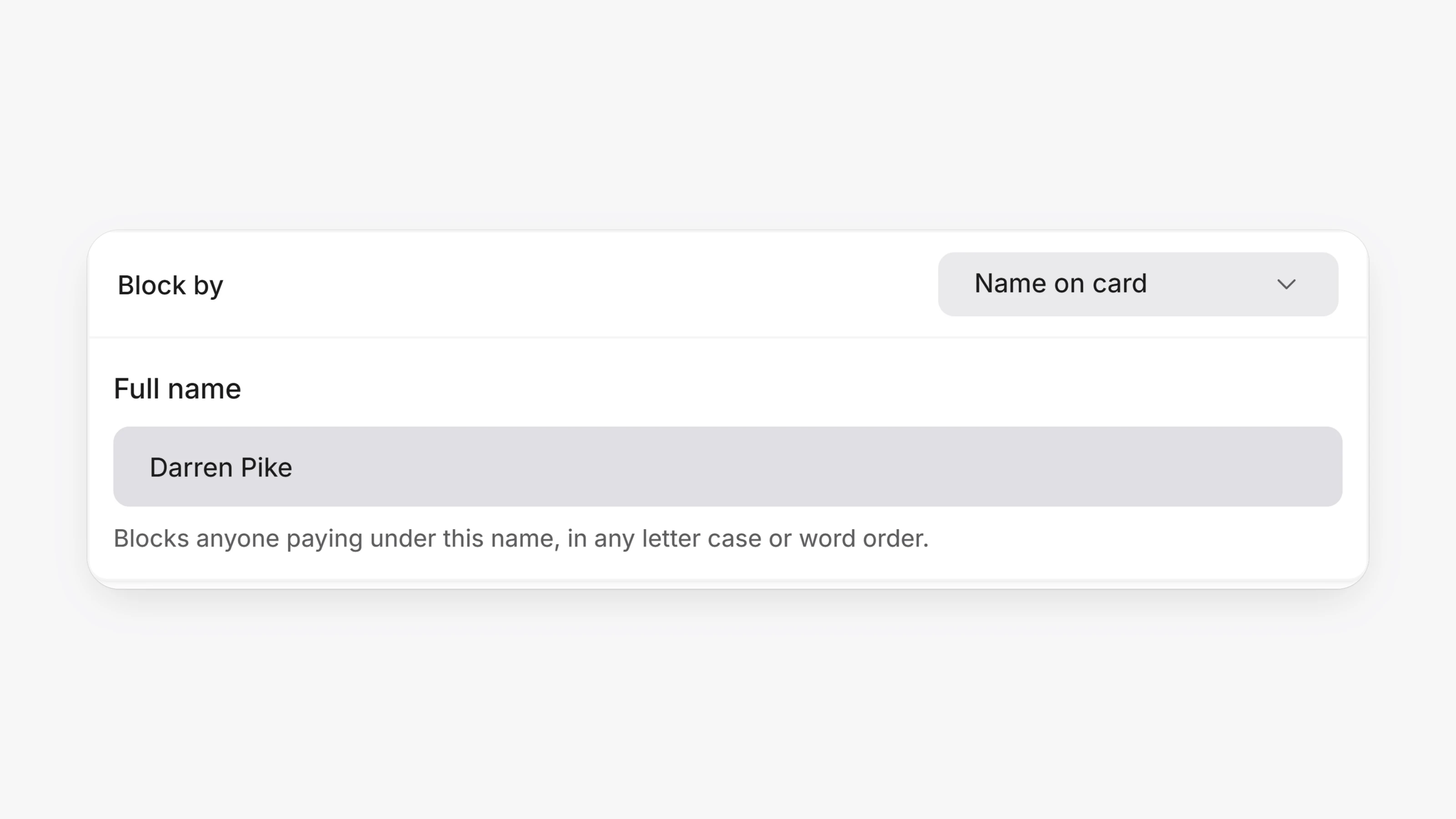
    A new block rule in the Blocklist settings, blocking by Name on card with the full name Darren Pike.

    You can now block a person by the name on their card. Open Settings, then Blocklist & allowlists, click Add rule, pick Name on card under Block by and type the Full name. Letter case, accents and the order of the words are ignored, so "PIKE darren" is blocked too. A single word is refused.

    You can also block a name from a customer or a payment: click Block at checkout and pick the Name on card option. It warns you that it blocks anyone paying under that name, not only that customer.

    For developers, a declined or refused payment on a payment link or a checkout now sends payment.failed right away, instead of nothing until the checkout expired. One checkout can send several before payment.completed.

    • payment.failed now fires for a decline, a failed card check, a blocklist match and a refusal by your risk settings. It never fires when the outcome is unclear.
    • It carries error_code (card_declined, blocked_by_blocklist or blocked_by_risk_score), decline_code, error_message, risk_score and risk_decision.
    • payment.completed now carries risk_score and risk_decision too, from hosted checkouts and POST /v1/charges, so you can hold a payment marked review. Both are null when risk scoring is off.
    • The developer docs are now the Merchant API reference, grouped in folders such as Getting started, Payments, Checkout, Customers, Billing and Payouts. The page you are on lists its endpoints, and search (Ctrl+K) finds any endpoint by name.
    • If your agent or Paysio is setting up your card payments, or you take cards with your current processor, the setup checklist no longer asks you to connect one.
    • If your card account was set up for you, Settings, then Integrations shows it as Card processing.
    • Once Paysio Debit & Payouts is approved, Balance and Settlements say it is being set up, with the day it was approved, instead of asking you to connect.
    • A cancelled application link now says "This link was cancelled".
  7. An AI teammate in your dashboard

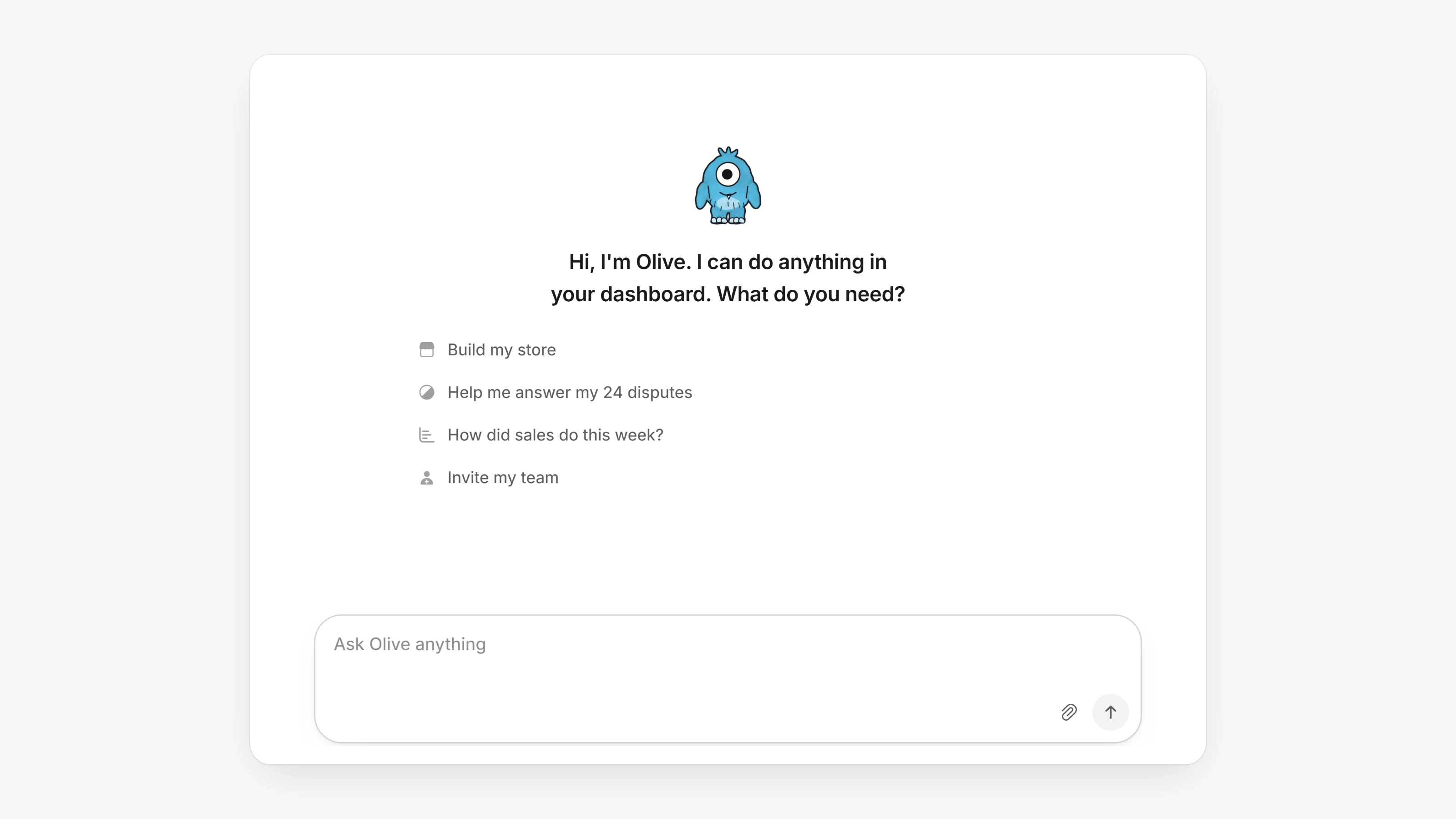
    The Agents page in the Paysio dashboard, with the teammate greeting and suggestions above the message box.

    Every workspace now has an AI teammate. Open Agents in the sidebar and ask it what you need in plain words. It can find a payment, tell you how sales did this week, help you answer a dispute, build your store, or invite your team.

    It works in the dashboard the same way you do, with your permissions. Before it moves money, sends an email, deletes something or changes a security setting, it shows you a card with the details, and nothing happens until you confirm.

    It also works beside any page. Open the side chat from the top of the sidebar to keep a conversation going while you work.

    • Every workspace now has its sandbox gateways connected from the start, however it was created, so you can test payments in Sandbox right away.
    • Store builds get more time, so a long build no longer stops partway through.
    • Opening the side chat on your store page moves the store conversation into it.
  8. Add fees to invoices and terminal sales

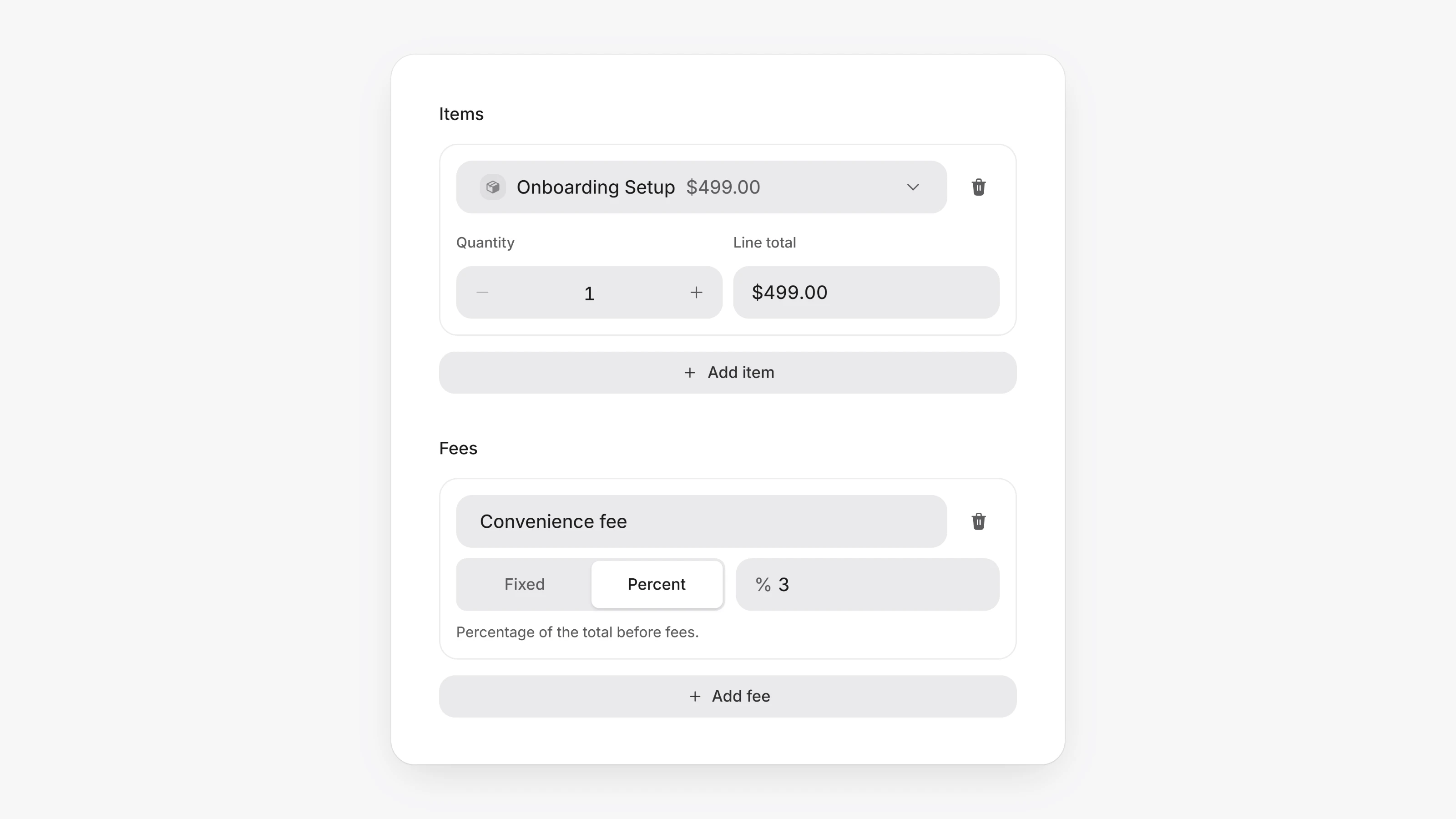
    The Fees section of a new invoice, with a convenience fee of 3 percent.

    You can now bill for something that is not a product, such as a convenience fee or a handling charge, without creating a product for it.

    On a new invoice or in Virtual Terminal, click Add fee under Fees. Name the fee, then choose Fixed and enter an amount, or Percent and enter a percentage. You can add up to 10 fees.

    A percentage is worked out on the products plus tax, minus any discount. Each fee shows as its own line on the invoice, the PDF, the email, the checkout and the receipt, and the amount stays fixed once the invoice is created.

    • POST /v1/invoices takes custom_fees, a list of fees with a label, a type of fixed or percentage, and a value. A fixed value is in cents.
    • Invoices and transactions return customFees, each line with the amount it came to in cents.