Embed Paysio Checkout on your own site
Embedded Checkout puts the full Paysio payment block inside your own page: email, phone, Quick Checkout, saved and new cards, bank accounts when enabled, addresses and 3D Secure. Apple Pay and Google Pay buttons appear when they are enabled for your workspace. Card and bank details stay inside Paysio's secure fields and never reach your page.
Create a checkout session with ui_mode: "embedded" and the HTTPS origins allowed to host it. Then pass the returned client_secret to paysio.mountCheckout(). The form resizes itself, and when the payment completes you get the order number to show your customer.
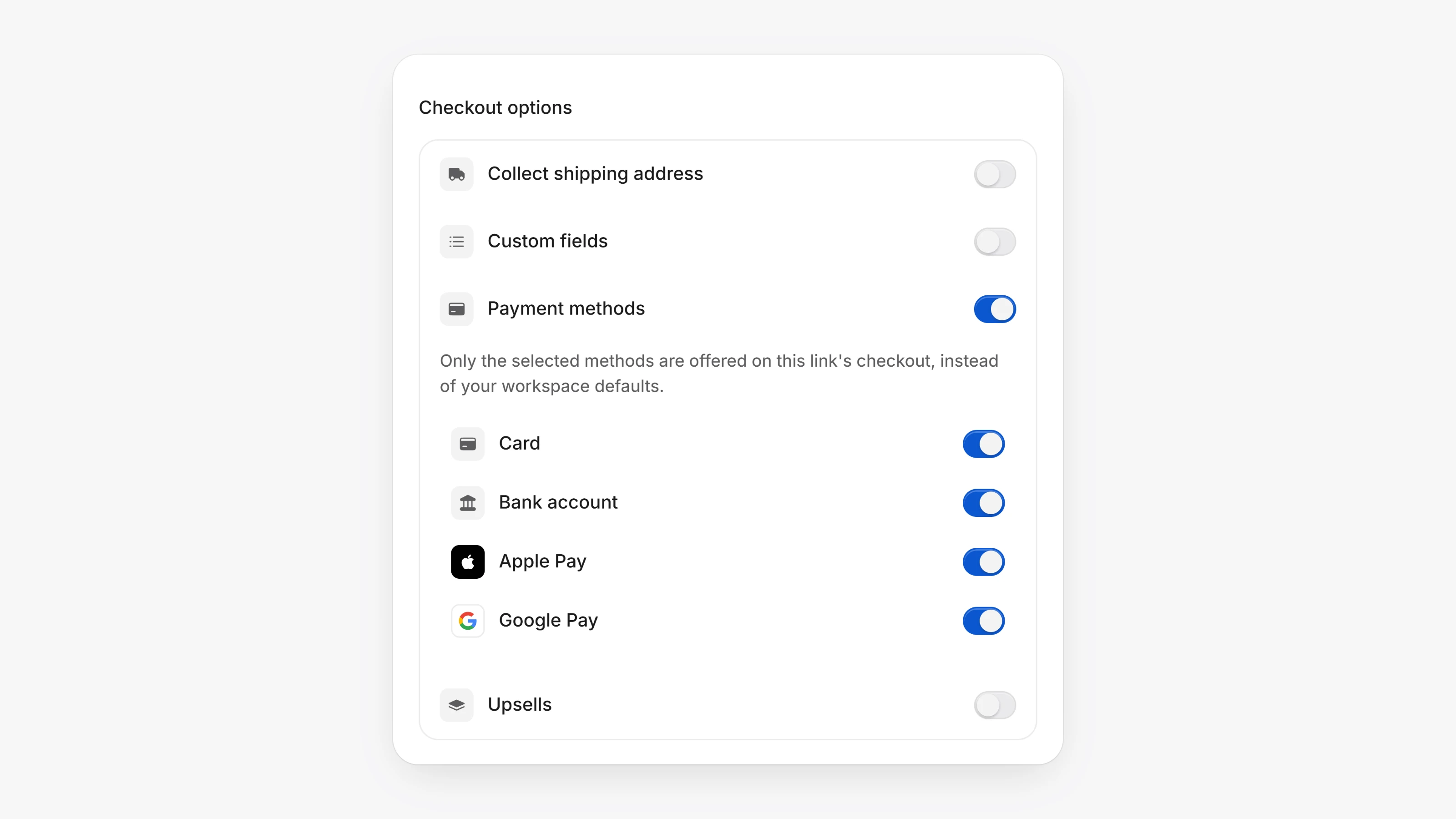
You can now choose which payment methods each payment link offers. When you create or edit a link, turn on Payment methods and pick from Card, Bank account, Apple Pay and Google Pay. Payout links work the same way: turn on Payout methods and pick Card, Bank account or both.
- When you send money, you can use Add a note to include a message of up to 500 characters. The note shows on the payout in your dashboard and in the recipient's portal.
- The Disputes page has a bar that counts cases by status: Needs response, Under review, Won, Refunded, Lost and Accepted. Click a segment to filter the list.
- Each dispute has its own page, with Other disputes from this customer and a Repeat disputer warning when the same card has several open cases.
- Workspaces with only a bank processor can take bank payments at checkout and in Virtual Terminal. Card fields are hidden.
- If a customer has opted out of text messages, Quick Checkout now sends their code by email.
POST /v1/checkout-sessionsacceptsui_mode,allowed_parent_origins,appearance,customer_email,customer_phoneandexpires_at.- Embedded sessions also accept
show_order_summary, plusemail_field_modeandphone_field_mode(editable,read_onlyorhidden). - Use
quick_checkout_behavior(on_input,on_loadordisabled) to control when Quick Checkout verification starts. - Restrict a checkout session to certain methods with
payment_methods.