Apple Pay and Google Pay now run through Paysio
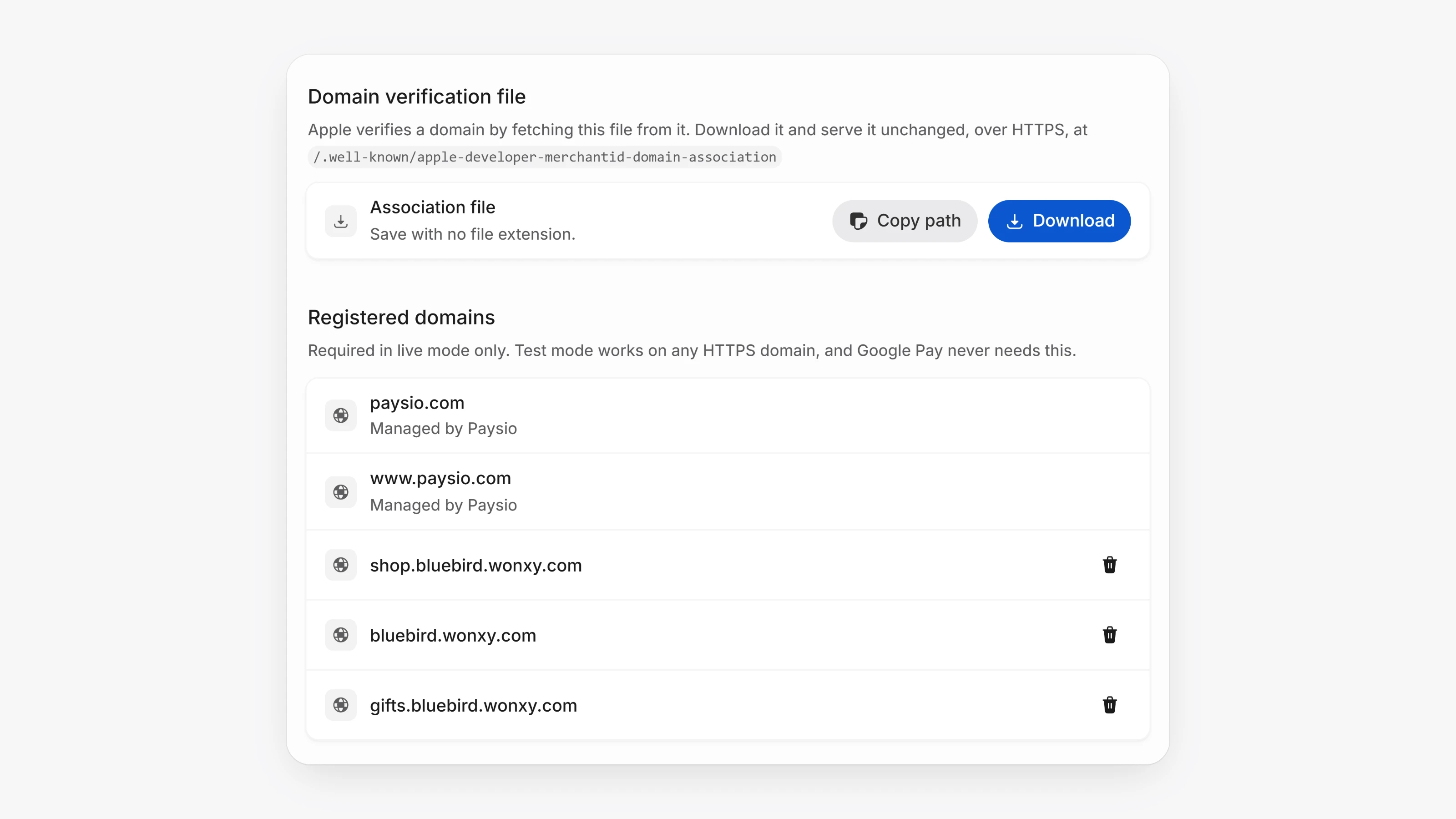
Paysio now operates Apple Pay and Google Pay directly, so you no longer pick a wallet setting on the payments page. Your workspace domains on paysio.com and your active custom domain are registered with Apple automatically. The Google Pay button works on any domain, including your custom domain, with no registration with Google.
To show Apple Pay on your own website through paysio.js, open Settings, then Apple Pay domains. Click Download to get the association file and serve it unchanged over HTTPS at the path shown. Then enter your domain under Add a domain and click Add. Paysio checks the file before registering the domain with Apple. Domains marked Managed by Paysio are handled for you.
Apple Pay and Google Pay sales now have a Wallet authentication section on the transaction page. It shows the on-device verification, the ECI and whether a cryptogram was present, which is the evidence you need for a fraud chargeback.
- If a customer starts an instant bank payment but does not finish authorizing their bank, Paysio emails them a reminder with a link to finish. The email uses your workspace branding.
- Transactions waiting on the customer show Awaiting bank authorization, and you can send the link yourself with Copy verification link.
- Apple Pay payments show the last four digits of the customer's real card, not the device number.
- Failed payouts now show the reason the bank or network gave, such as a closed account, instead of a bare error code.
- Charge an Apple Pay or Google Pay payment from your server with
POST /v1/chargesandpaysio_wallet. Forward the paysio.jswalletPaymentpayload exactly as you received it. POST /v1/wallets/prepareruns 3D Secure on Google Pay cards that need it. paysio.js does this step for you.- Manage Apple Pay domains with
GET,POSTandDELETE /v1/wallets/apple-pay/domains. - Set
googlePay.personalized: falsein paysio.js to keep the Google Pay button from showing the customer's card preview.