Live notifications, a smoother setup, and a new sign in
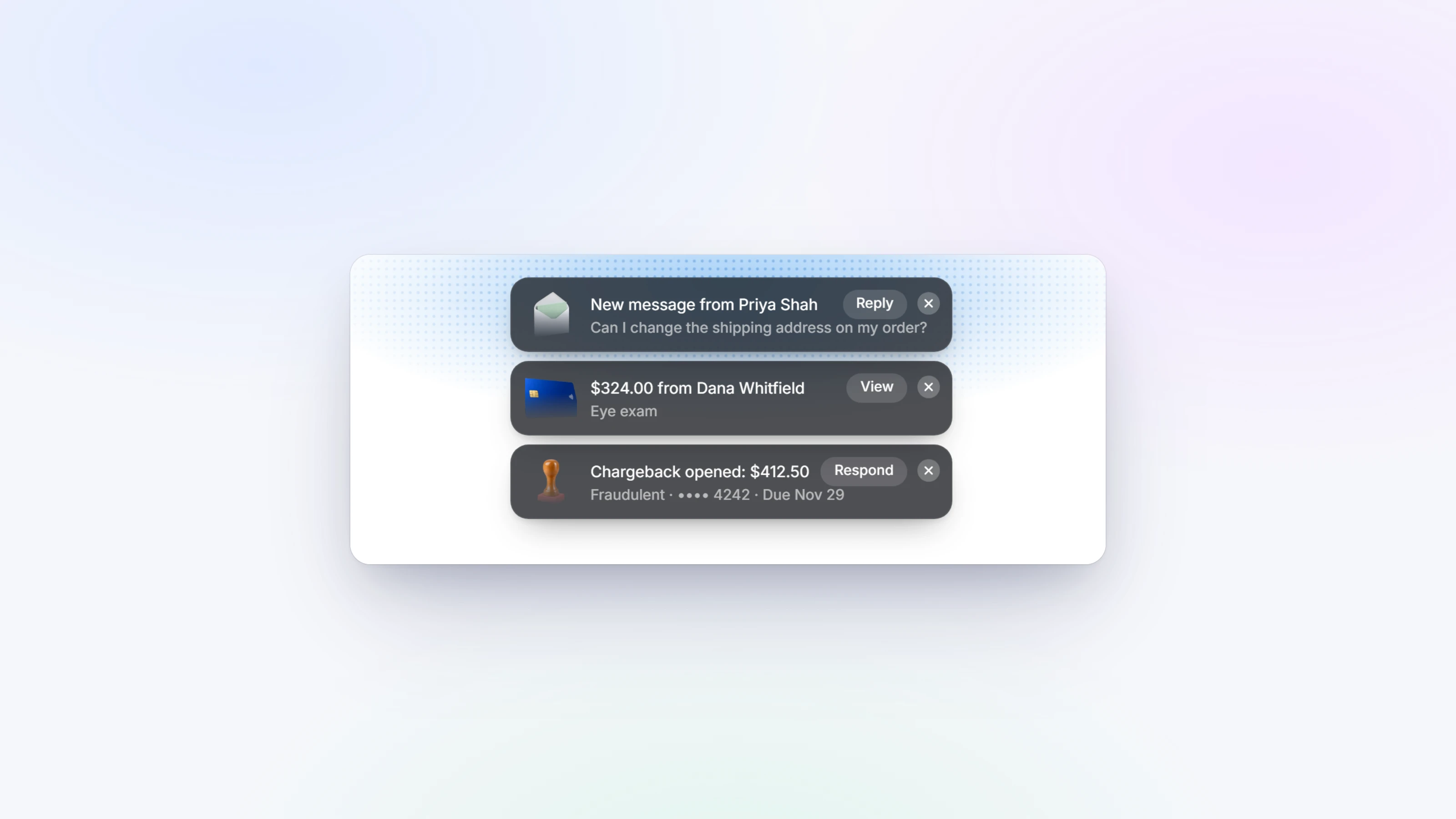
Things that happen in your business now show up as notifications at the top of the screen: a new payment, a customer message in Inbox, a chargeback, a payout that was paid or failed, a refund, a new subscription. A busy minute becomes one notification ("12 new payments") instead of twelve. Click one to open it. Chargebacks stay until you close them, so you never miss a deadline.
Pick where notifications appear in Settings, Appearance: top middle, bottom middle, top right or bottom right. Turn each kind on or off in Settings, Notifications.
The card at the bottom of the sidebar now shows your next step on the way to live payments. Click it to see every step at once, what is done and what is left.
- The first setup asks for your billing address with your bank account, and ends with one summary of everything you entered, with Edit next to each part.
- When your application asks for your bank account and you already saved one, choose Use this account instead of typing it all again.
- Signing in has a new, simpler look.
- Team in Settings now shows your people first and your roles below, in one place.
- Home shows today's approval rate, and your next best steps appear right away.
- Storefront opens instantly, and pictures across the dashboard load faster.
- On your phone, every page header fits on one row and pages show up right away while they load.
- On a brand new account, the Virtual Terminal could ask for bank details even after you entered a card. It now charges the card.
- Live dashboard updates are now only sent to people signed in to that workspace.