Two-step verification, and a second look at refused payments
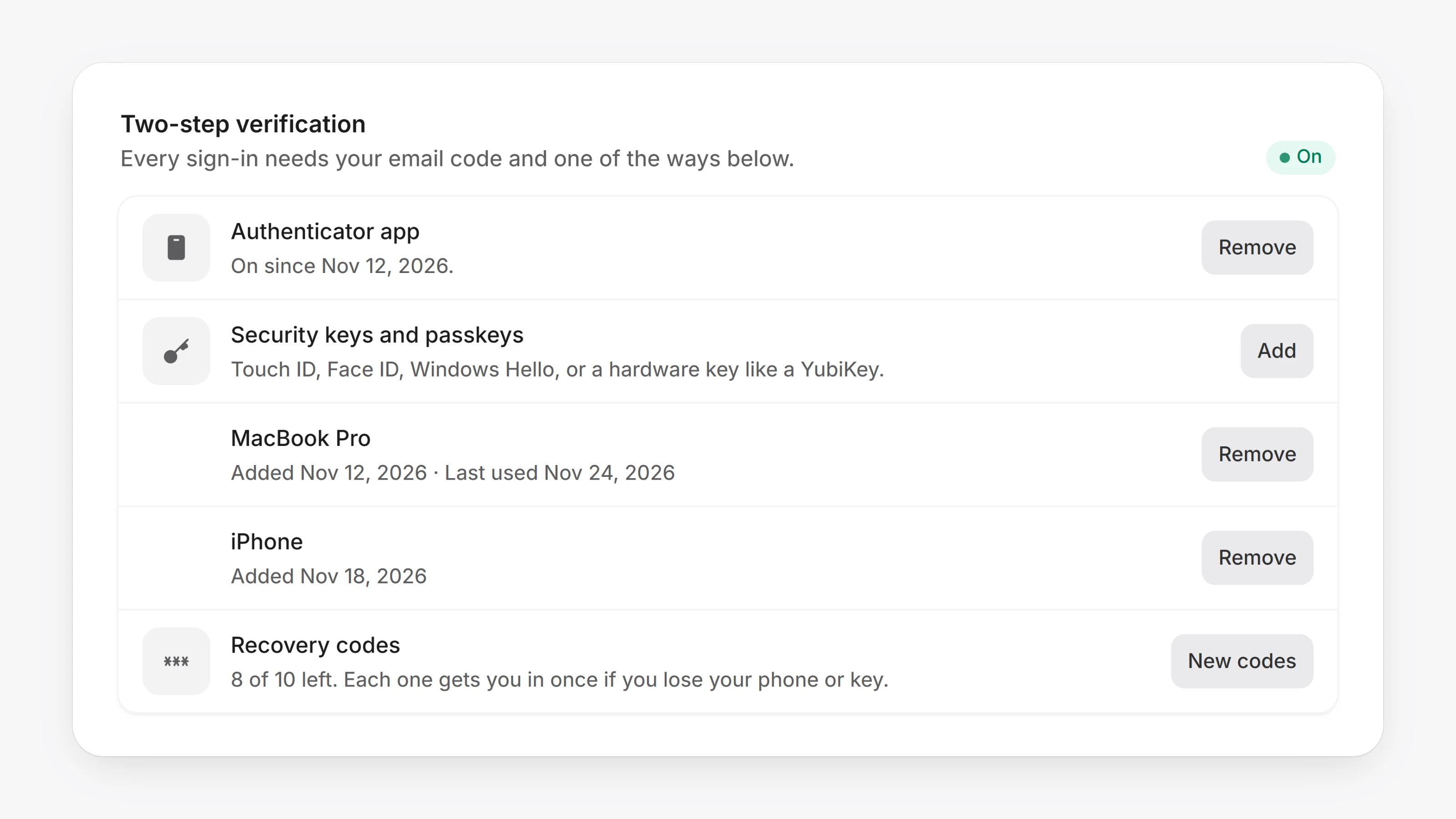
You can now ask for a second step every time you sign in. Open Settings, then Security, and find Two-step verification. Set up an Authenticator app by scanning a QR code, or Add a passkey or security key, such as Touch ID, Face ID, Windows Hello or a hardware key. Once either is on, every sign-in needs your email code and one of them.
The first one you add gives you 10 Recovery codes. Each one gets you in once if you lose your phone or key, so keep them somewhere safe. Removing a way to sign in, or making New codes, asks you to confirm it is you first.
Sign-in codes are tighter too. Only the newest code you were sent works, and a code stops working after a few wrong tries.
Refused payments now go to the AI fraud review too, whether your risk score or one of your block rules refused them. When a refusal looks like a mistake, the review says Looks like a mistake and suggests Allow. One click lets that customer through for the next 24 hours. When a customer with a long, clean history is refused, the AI can let them through on its own, and you can undo it in one click.
- Reviews use five labels: Fraud when the AI blocked someone, Likely fraud when it only suggested blocks, Possible fraud, Looks like a mistake and Looks normal.
- A card is recognized by its brand and last 4 digits. Paying with the same card through Apple Pay or Google Pay no longer looks like several different cards, and a blocked card stays blocked when it comes through a wallet.
- A block the AI suggests is shown once, not repeated.
- Open Settings, then Notifications, to choose who gets Fraud & risk emails, with a switch to turn them off. Dispute emails have moved to the same page.
- By default, fraud and dispute emails go to your transaction email addresses, or to the workspace owners if you have none, instead of every admin.
- A merchant's page has a new side rail with its status, assignee, pricing and processors, and Services and Tags as chips.
- Each to-do in To-do's opens its own page, with a short note from the teammate, its Activity and its Details.
- The To do pane opens the same merchant page.
- The Merchants list shows one line per merchant. Display options sets the layout, grouping, ordering and which details each row shows, including to-do progress. Owners can Set default for everyone.
- The teammate's note on a merchant is one headline and at most three short lines, and What we know reads as short memos.
- When an email or card depends on an answer you have not given yet, the teammate waits for it and tells you what it is holding. Anything your answer cannot change still goes out.
- The teammate's steps say what each one did and found.
- The Mail header is cleaner when the side rail is closed.